Sunday, March 17, 2013

How To Add ‘Remind Me Later’ Functionality On iPhone In Mail, Safari, Messages, Lock Screen Notifications

How To Add ‘Remind Me Later’ Functionality On iPhone In Mail, Safari, Messages, Lock Screen Notifications

We love it when Apple takes it upon themselves to introduce new features with major releases of iOS. We tend to find that smaller point releases contain critical bug fixes and amendments to make things a lot more usable, whereas the larger significant launches contain the notable feature enhancements. One of the more welcomed additions to iOS 6 was the ability to silence incoming FaceTime and phone calls with a remind me later type feature, but the question does arise; why didn’t Apple have the foresight to make this available across additional parts of the operating system?


 Thankfully, if there’s an iOS usability issue, or an area that we feel can be made a little bit better with a few tweaks here and there, then there is generally a developer willing to take on the task. This is implemented remind-me-later feature and introduces the functionality to different aspects of iOS. At the time of writing, the developer in question had chosen to add the feature to Mail, Messages, Mobile Safari and lock screen notifications.
anyReminder1
The tweak is essentially intended to make sure that users are able to step away from what they are doing, safe in the knowledge that they won’t actually forget about it long-term. Incoming notifications that are displayed on the lock screen can be dismissed or set to be reminded of later by dragging up the native camera grabber icon that has previously been reserved for invoking the Camera app. Mobile Safari also gets the same treatment, with a new entry being added to the action alert sheet that allows users to remind themselves to pop back to the page.
AnyReminder2


Perhaps the most important aspect of the tweak from a user’s perspective is the integration with the native Mail and Messages apps on the device. I’m pretty sure that we have all received incoming emails or text messages that we have wanted to reply to at a later date but ultimately forgot about. AnyReminder makes sure that doesn’t happen by allowing the user to simply set the system to remind us about the message in one hour time.
AnyReminder is available as a $1.99 download from the BigBoss repository and requires a jailbroken device running iOS 6.0 or higher.

How To Install PSP Emulator On iPhone And iPad [Tutorial]

If you take a second to launch the iOS App Store and check out the top paid and free charts, it becomes immediately apparent how successful mobile based gaming has become on Apple’s range of iOS devices. We’ve seen time and time again that some of the biggest app launches that attract the most attention come from established and independent game developers and have managed to thrust mobile based gaming directly into the limelight.
Games like Infinity Blade that are based around the Unreal Engine have shown us exactly what developers are capable of producing for the iPhone and iPad, but that doesn’t mean that every release is going to be that polished. Different genres of games call for different graphics and implementations and thankfully the App Store has all categories covered ranging from 2D top-down classics to advanced multiplayer 3D creations. But what about those who want to maybe try some of the old classics from Sony’s fantastic PSP?
EmulatorStep4
Where there’s a will there is most definitely always a way, so let us introduce you to the multi-platform PPSSPP Emulator that allows PSP games to be emulated on the Apple mobile hardware. If playing those wonderful PSP games on your jailbroken iPhone or iPad appeals to you, read on for a simple step-by-step process to get up and running.
Installing the PPSSPP Emulator
NOTE: The installation of the emulator requires a jailbroken iPhone, iPod touch and iPad. This package will not work on stock iOS devices running an unmodified version of iOS.
Step 1: Launch Cydia, navigate to the Manage tab before selecting Sources and then Edit. Select the Add button from the top left corner and enter the following third-party repository: cydia.myrepospace.com/theavenger.
Emulator1
Step 2: Wait for the repository to refresh and bring in the hosted packages. Search for PPSSPP before selecting the one returned result and selecting install.

.
Step 3: When the package has finished installing select the Return to Cydia option. Exit Cydia and you will notice a new PPSSPP icon on the home screen of the device.
Step 4: Select the PPSSPP icon from the home screen to launch the PSP emulator on the jailbroken device.
The default installation of the PPSSPP emulator will come in the form of a fully functioning shell application, meaning that the ability to play PSP games is there but no actual PSP ISOs are present. Users will be required to dump their own PSP games and turn them into .ISO or .CSO files in order for the emulator to interact with them. Alternatively, there are a number of free homebrew type games that are available online.
Putting .ISO or .CSO files onto the device
Before being able to play PSP games through the emulator it is necessary to copy one or more .ISO or .CSO files across to a directory on the device. When the emulator is launched it has a ‘Load…’ option that allows us to point it to the directory of installed games.
NOTE: Dumping already owned games and formatting them into the correct format for the emulator is outside of the scope of this guide and therefore isn’t covered. The next steps assume that this has already been carried out.
Step 1: The default directory that the emulator looks to for games on the jailbroken device is /var/mobile/Documents. This folder will be more than likely be initially empty and requires us to provide it with some game data.
Step 2: Because the PSP game files are likely to be larger than 450MB in size it makes good sense to copy them to the device using a wired connection and a program like iExplorer or Cyberduck. Connecting through wireless through SSH is also an option but data transfer will likely take a lot longer. Copy the game file to a familiar directory on the device.
Step 3: Load the PPSSPP Emulator, select the Load… option from the right hand menu and then navigate to the directory where the file was copied in step 2. Launch and play the game.
EmulatorStep2

All The Tiny Changes Hiding in Facebook’s Latest Redesign

All The Tiny Changes Hiding in Facebook’s Latest Redesign

Zuck bought Facebook its fanciest new outfit in many years this week, and naturally, the New News Feed is getting all the swooning. But FB added a handful of delicate tweaks and turns to the site—some you might not have noticed yet.

It makes sense to toss in little changes in the shadow of a giant one. Some of them make sense given the news feed shakeup. Others are just augmentations the team slid in without noticing. Many are good. Some are not. Here's a guide to all that's new and (mostly) improved.

All The Tiny Changes Hiding in Facebook's Latest Redesign

Fonts

The words you read on Facebook look different now. Helvetica. All over the place. According to Facebook Product Designer Vivian Wang, the typographical shift is part of Facebook's strategy to be more consistent. Your statuses should look the same whether you read them on a phone, tablet, or browser, and with the Helveticafication of Facebook, there's a "consistent voice" no matter what device you're using. And voice is neutral—Helvetica is beloved for being both brilliant and inoffensive, which is why you'll see it everywhere from the NYC Subway and the Space Shuttle. And now, Facebook. This was probably inevitable.
FB also added some old fashioned styling to its revamped article sharing—if you toss in a link, the headline will be displayed in large point Georgia—a typeface that's very, very close to Times New Roman, and carries a lot of its gravitas. Zuck said he wanted the feed to be more like a newspaper, and here's how.

RIP Ticker

The controversial Ticker—that live feed of everything our friends clicked, liked, and shared, as it happened—has been beaten within an inch of its life, and stuffed into an insultingly small box in the bottom left of the page, where no one will even think to look for it. It only shows one item at a time, and completely blends into your IM buddy list, so really, it might as well not be there at all. Wang said the Ticker is now "more of a peripheral feed," which seems appropriately euphemistic for a funeral. She was quick to point to the "Most Recent" category of the revamped New News Feed, which Facebook says is now your best bet for perma-stalking your friends.
Don't be surprised when the ticker vanishes completely. You probably won't even notice.

All The Tiny Changes Hiding in Facebook's Latest Redesign

New profile pictures

Hey, did [__________] change her profile picture? I love those glasses, don't you? George looks handsome, too. And now they've got their own little rectangle in the Photos News Feed, highlighting their most recent vanity changes.

Update bubbles

This is so tiny, and so lovely. If there's a new story on a feed you're currently reading, you'll get a gentle bubble reminder. Click it, and you'll be taken to the top.

Animated likes

Entirely trivial, but slightly charming. When you like something, the little thumb briefly bounces, just like in the mobile app. I'm sure some group of PhDs decided that would make people click things more often, because we're animals that like to see little things bounce around.

All The Tiny Changes Hiding in Facebook's Latest Redesign

Shape-shifting sidebar

A great deal of Facebook has been stripped down and stuffed into the lefthand sidebar. What happens if you don't have the screen real estate to fit that and everything else? Just make your browser window smaller, and the bar shrinks to an icon-only view, saving a great swath of pixels.


Hack any skype account in 6 easy steps

Major vulnerability of Skype's password reset system has went public today.
The only thing you need to obtain full access to any Skype account is primary email of that account (the email which used when the Skype account been registered).
Following guide contains both - how to steal an account, and how to protect your account (scroll down for that).

Update 1 (November 14, 2:00am PDT): Skype made the password reset system disabled. So link on the step 4 is not working for me now (starting from November 14, 2 am PDT).
Update 2 (November 14, 6:00am PDT): Skype re-enabled the password reset system, but now it will not sent recovery token to attacker's client. The hole (gate, almost highway road) is closed.


For example, I know somebody's email - crackme33@yahoo.com , let's hack his Skype!

1. Go to the Skype website, register new disposable account. In email field, put target's email.

 
If the email, you typed into form, attached to some skype account, then it will say that "You already have a Skype account", that means you can hack it!
So, complete the form, provide some fake BOD, gender, country, answer to question "How do you intend to use Skype?" as personal, fill any skype name (REMEMBER IT), it will give you some suggestions of not taken ones, assign some password  (REMEMBER IT), solve the captcha, proceed forward - push the continue button. 
You will be redirected to you new account dashboard. Logout from it.
 
2. Run the Skype application with those new credentials.
3. Since we just logged in to a fresh account, at home screen of the Skype application, there will be advertisement "Find your friends and say hello", click somewhere to bring focus on that part of screen (I clicked where the red cross is drawn):
Then push F5 button on your keyboard, it will refresh the home screen. Do that 3-4 times until you see "Bring your Facebook friends into Skype" advertisement. Click "No thanks, blah-blah-blah".
You will get the home screen with some banner. 
4. Go to Skype's password reset system.Put the target's email. In my case - crackme33@yahoo.com .
Click "Submit button", and after several seconds, you will see Skype's pop-up notification - "Password token".
5. Go to Skype application, on the home screen you will see Password token, click on "more info", go to "temporary code link":
6. Browser will open page, where you can select any skype account registered to target email, in my case there are two account - my disposable and target:
Choose target's account and click "Change password and sign me in":
 You will be redirected to login form:


You are all set!
P.S. I have changed primary email for that test accounts, so do not try hack them. Just in case. =)

How to protect your accounts

You already changed password for the target account, know the skype login, and able to use that target skype account. But somebody could take it back from you, just as you did (owner for example).
To prevent that you need to change your primary email to some address, unknown to anyone.

To do that:
1. Sign in on skype website.
2. Go into the "profile" link (click to enlarge):


3. On account information, go down, to "Contact details", click "Add email address":
4. Add your email address, which unknown to anybody, but you:
Click save button at the bottom of the form. After page reload, refresh page again to prevent some strange glitches of the site (if you will not reload the page, after you do following steps, it will forget steps 4 and 5 and discard that little work).
5. Scroll to Contact details again. Click on "Add email address" again. Switch primary email to the new one:
Click "Save" button at the bottom of the form, again.
It will ask you for your password. You know it already. Type password and click button by mouse, not by "Enter" key.
After page reload, refresh page again to prevent some strange glitches of the site (described above).
6. Scroll to Contact details again. Click on "Add email address" again. Delete (with backspace and/or delete buttons) all emails but primary:

7. Click "Save" button at the bottom of the form. Make sure all your changes applied (it sometimes require two or more attempts, since the site is developed by curly-handed programmers).
8. Tell to friends how to protect a skype account. ASAP
At the time there is no other way to protect your skype account, except changing of primary email to some unknown address.
Once account is stolen, it has ability to retrieve all your IM history from other peers.
If you already lost your account, contact to all your necessary contacts and tell them to remove you from their contact list. It prevents IM history interchange (if it is not already happened).

There is how mailbox of target looks like:


Thus target will receive notifications regarding password change, but initial owner have less than one minute to understand and take action, it is almost impossible to login into skype website, change emails, when a hacker already there.
Disclaimer: The information provided on in this blog is to be used for educational purposes only. The blog author is in no way responsible for any misuse of the information provided.

Create a Secured and Locked Folder in Windows XP

How to Create a Secured and Locked Folder in Windows XP

Here are the steps to create the protected folder in Windows XP:
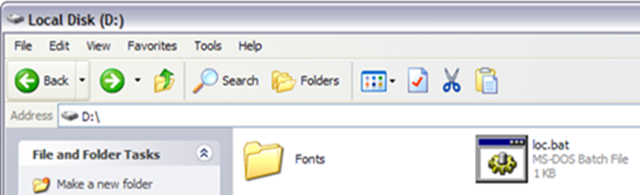
  • First create a folder that you will use to store your confidential data. For example, I have created a folder called Fonts at the root of my D drive. Since the hidden folder will bring you to the Control Panel, it’s best to name the folder as one of the programs inside there.
  • createsecurefolder1 
  • In the same location where you created the new folder, create a new file in Notepad, copy the following below into it, replace Fonts with the name of your folder and save it as loc.bat.
ren Fonts Fonts.{21EC2020-3AEA-1069-A2DD-08002B30309D}
  •  
  •  
  • To save the file as a .bat file in Notepad, just put the whole thing in quotes, like “loc.bat” and then click Save.
hiddenfolder
  • Now you should have a bat file named loc in the same directory as your Fonts folder, not inside the Fonts folder.
lockedfolders1
  • Create another NotePad file and type in the following listed below and save it as “key.bat”.
ren Fonts.{21EC2020-3AEA-1069-A2DD-08002B30309D} Fonts
  • Now you’ll have loc.bat and key.bat along with your folder. Go ahead and double-click on loc.bat and your folder will turn into the Control Panel and nothing inside can be viewed. Clicking on it will simply bring you to the Control Panel. You’ll notice the icon should have changed also.
protectedfolders
  • To view the data inside your folder again, click on key.bat and your folder will return to normal! Pretty simple!
Of course, keeping the key.bat file in the same folder will defeat the purpose of securing the folder, so it’s best to move the key.bat file somewhere else, or even better, put it on a USB stick or CD that only you can access.